Your Mac's audio,
rebuilt.
A system-wide 31-band EQ, a real-time visualizer, a Spotify control surface and a notch HUD — in one window that runs entirely on your machine.
Grab the arm64 build for Apple Silicon, x64 for Intel. Read the install steps first — the app is unsigned, and macOS needs one extra command.
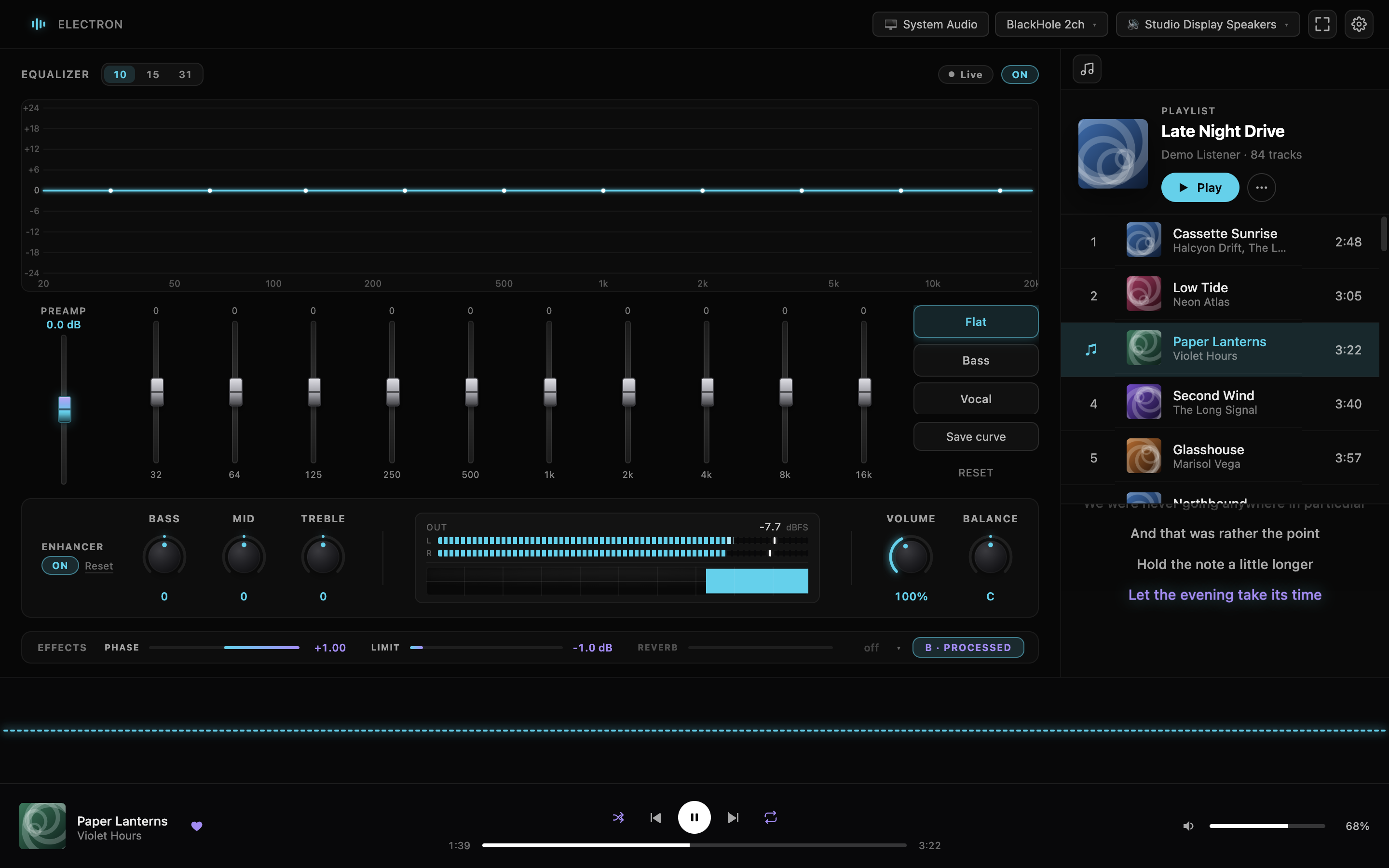
What it does
Four tools that happen to share a window, because they all want the same audio stream.
Audio engine
- 10 / 15 / 31-band EQ at ±12 dB per band, with Flat, Bass, Vocal, Loudness and Rock presets.
- AI Enhance adapts the curve in real time to whatever is playing. Lock any band to keep your own value.
- Bass / Mid / Treble shelves, ±12 dB preamp, volume and L/R balance.
- Output meters in dBFS with peak hold — the top segments turn white past 0 dBFS, where macOS starts clipping.
- Route processed audio to any output, independent of the macOS default.
Visualizer
- 13 styles — Spectrum, Ribbon, Radial, Dots, Mirror, Bars, Line, Filled, Particles, Silk, Scope, Bloom, Ripples.
- 16 palettes plus a custom picker, each re-theming the whole interface.
- Auto-tint from album art — colours are sampled from the current cover and crossfade between tracks.
- Glow, motion trail, sensitivity and smoothing controls.
- Live FFT energy behind every EQ slider: current signal against unmodified.
Notch HUD New
- A music panel that hangs from your MacBook's notch and stays on screen while you work in another app.
- Hover to reveal artwork, title, the current lyric line, a scrubber and full transport.
- Idle, it shows just the album thumbnail and level bars, tucked either side of the camera.
- Colours follow the album art when auto-tint is on.
- One trade-off to know about →
Spotify
- Playlists, saved albums, search and a paginated track list.
- Synced lyrics where available, plain text otherwise.
- Right-click any track to add it to a playlist, queue it, or copy its link.
- Persistent player bar — transport, scrubber, volume.
Spaceplays and pauses,←/→change track. - Listening stats — top artists and tracks, genres, release eras, and how mainstream your taste runs.
- Reopens the last playlist you had open.
Performance
- The visualizer runs off the main thread on its own canvas, so the interface stays responsive.
- The app measures your Mac on first run and picks a quality tier to match it.
- Weaker machines get a lower render scale and a frame cap rather than a slideshow; nothing about the look changes.
- Rendering pauses entirely while the window is hidden.
Privacy & updates
- Nothing leaves your Mac except Spotify API calls and lyric lookups.
- No accounts, no analytics, no crash reporting.
- You supply your own Spotify Client ID; tokens stay local.
- Updates ask before doing anything — install now, install on quit, or skip the version for good.
Thirteen ways to watch it
Every style reacts to whatever your Mac is playing. Visuals-only mode hides the rest of the interface and gives the whole window over to it.
Particles, aurora palette, visuals-only mode.
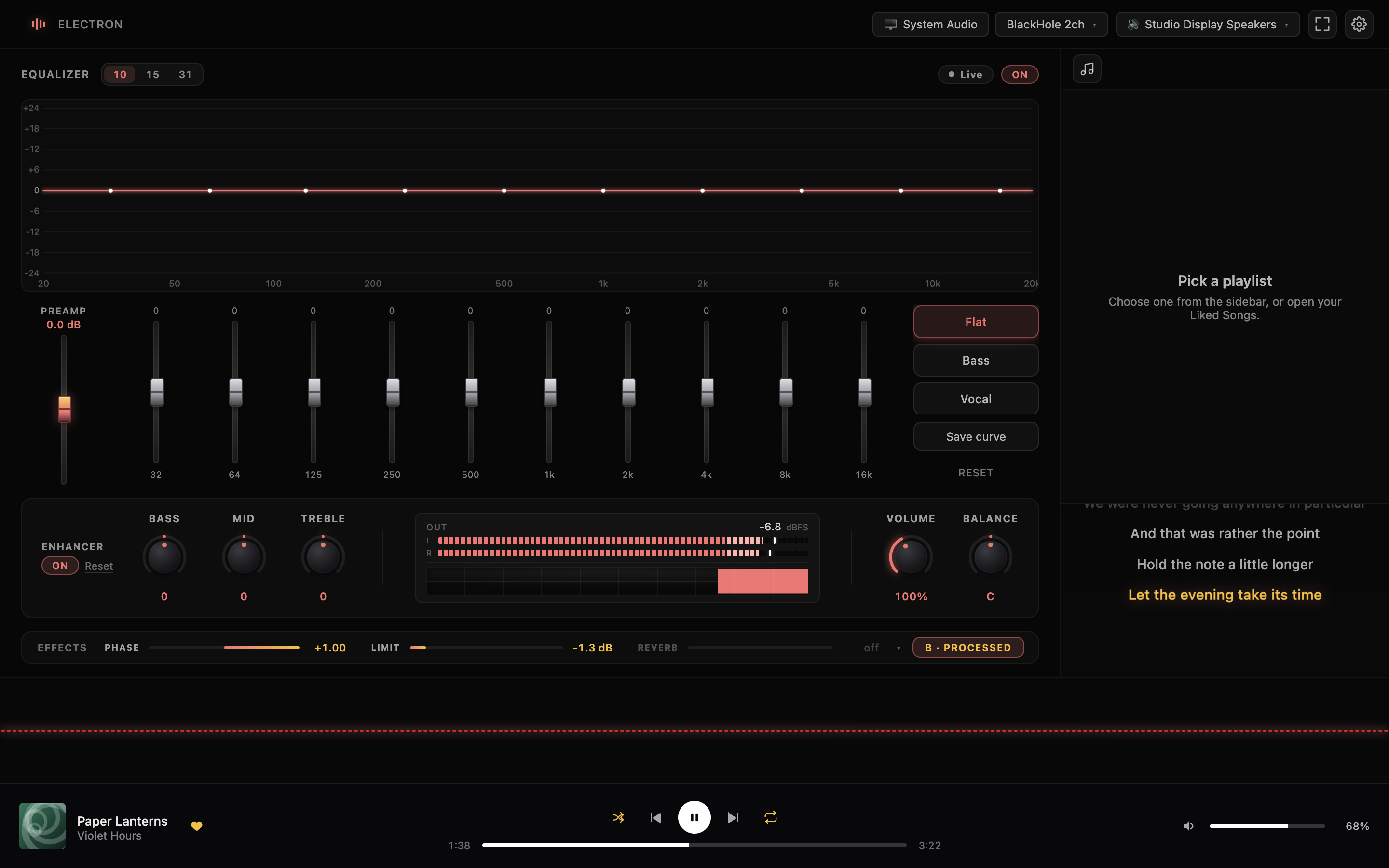
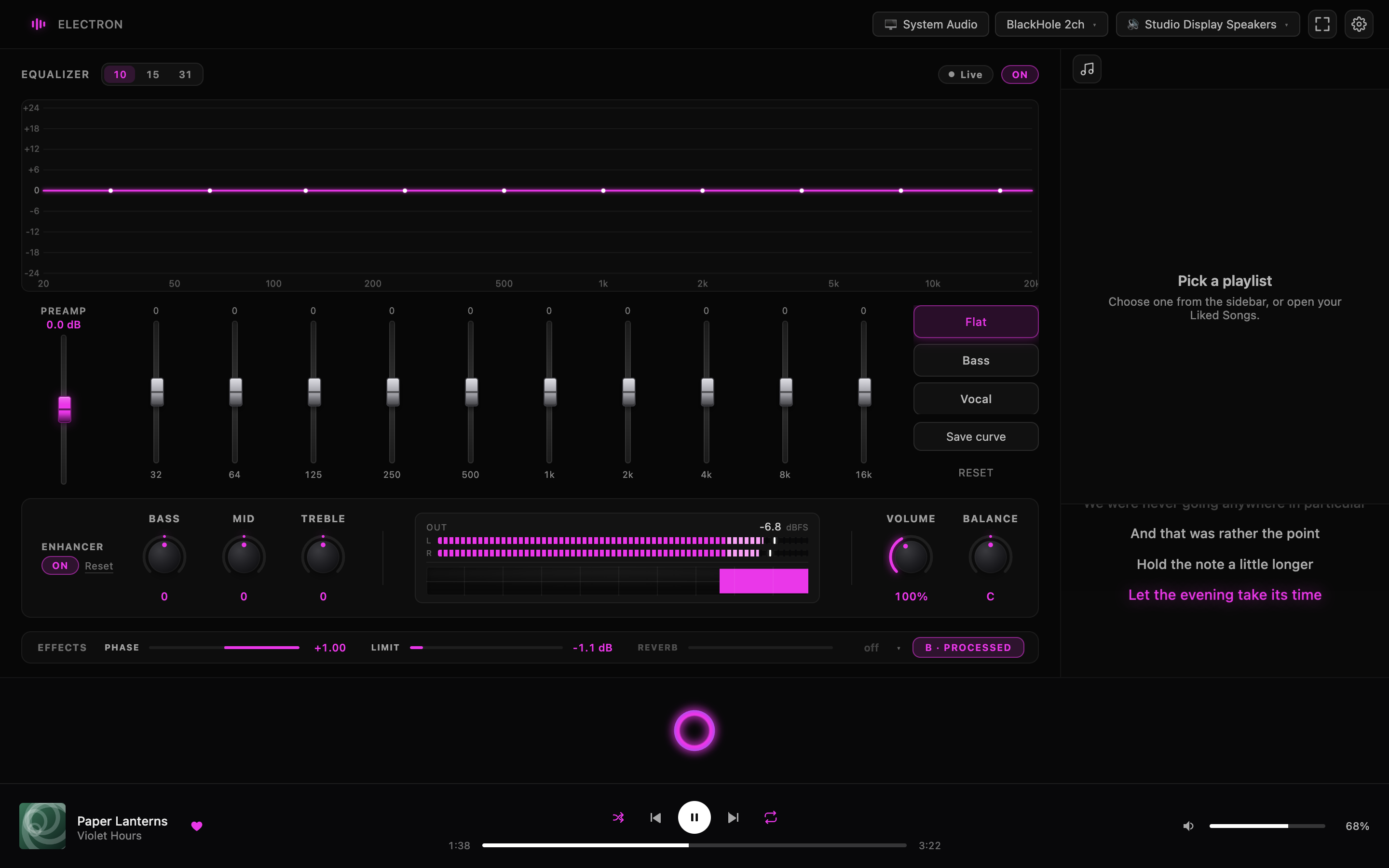
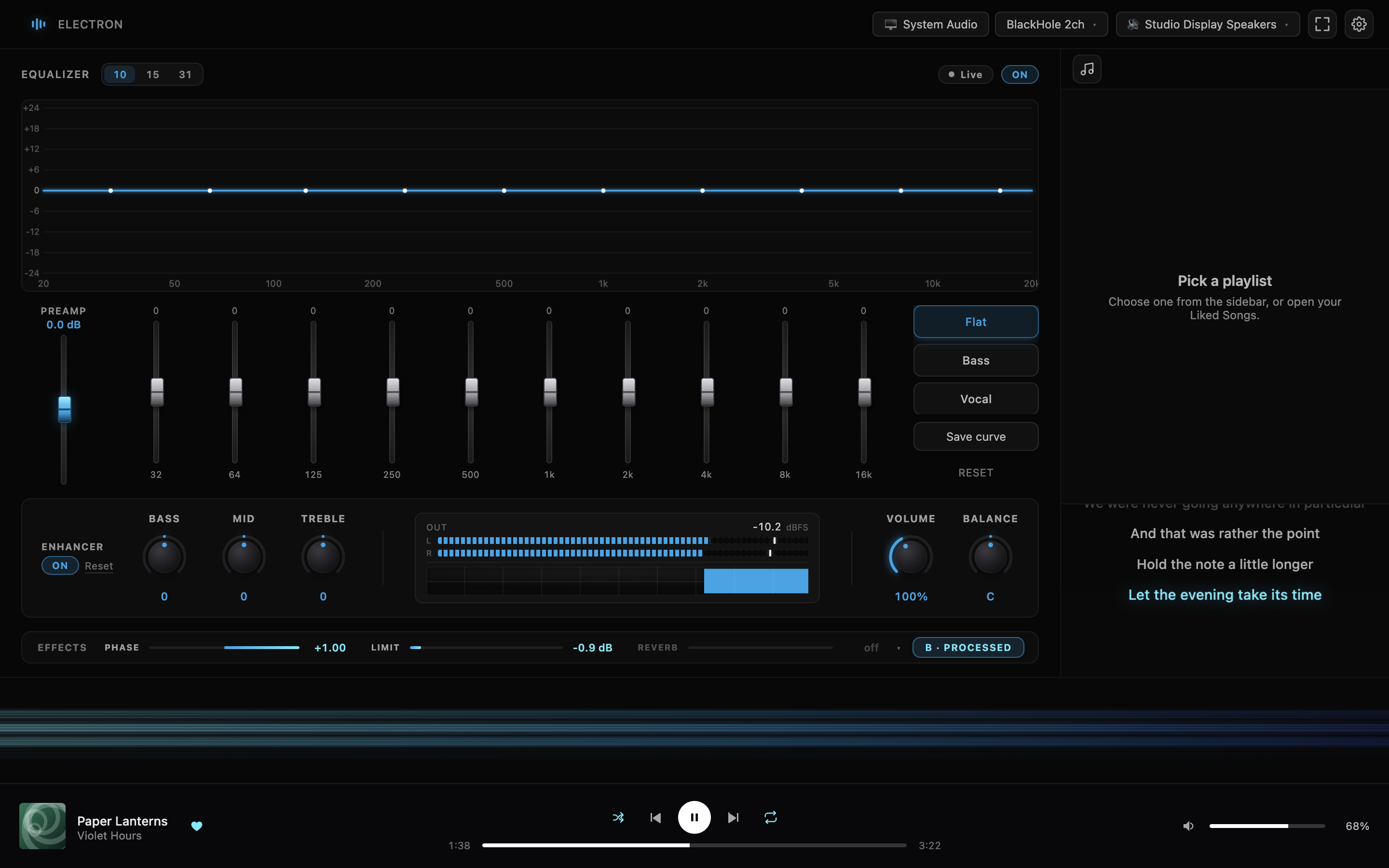
Also: Spectrum, Ribbon, Dots, Mirror, Line, Filled, Scope, Bloom and Ripples — across 16 palettes, or one you pick yourself.
Install
No Homebrew, no Node, no build step. One download and one Terminal command.
-
Download the DMG
Grab it from the latest release and pick the file matching your Mac:
Electron-x.y.z-arm64.dmg— Apple Silicon (M1, M2, M3, M4, M5…)Electron-x.y.z-x64.dmg— Intel Macs
Not sure which you have? Open the Apple menu → About This Mac. Anything listing an "Apple M" chip is arm64.
-
Open the DMG and drag the app out
Drag
Electronto your Downloads folder for now — not Applications yet. The next step is much easier from Downloads. -
Clear the quarantine flag, then move it
macOS will otherwise say "Electron is damaged and can't be opened." It isn't damaged — see below. Run these three lines in Terminal:
xattr -cr ~/Downloads/Electron.app
mv ~/Downloads/Electron.app /Applications/
open /Applications/Electron.app
That's the whole install.
The app is unsigned. Signing requires the Apple Developer Program at $99/year, which is hard to justify for a free tool. macOS attaches a quarantine flag to anything a browser downloads, and for unsigned apps it reports that as "damaged" rather than anything more useful.
xattr -cr removes the flag. Nothing else about the app changes, and you only do it once per install. If you'd rather not run the command, you can build from source instead — see below.
Then xattr will fail with Operation not permitted — recent macOS blocks Terminal from touching apps in /Applications. Move it out, fix it, move it back:
mv /Applications/Electron.app ~/Desktop/
xattr -cr ~/Desktop/Electron.app
mv ~/Desktop/Electron.app /Applications/
Alternatively, grant Terminal permanent access under System Settings → Privacy & Security → App Management, restart Terminal, and run xattr -cr in place.
First-run setup
Three things to wire up. The visualizer works immediately; the EQ and Spotify need a moment.
1. macOS permissions
macOS asks as you reach each feature — one click each. You can also grant them later under System Settings → Privacy & Security.
- Microphone — required to list your audio devices at all. macOS hides device names from apps without it, even if you never use a microphone.
- Screen Recording — only if you use the System Audio button to capture without a virtual driver. The video is discarded immediately; only the audio is used.
2. BlackHole 2ch — strongly recommended
It's technically optional, but it's the only routing that makes Live mode work properly. Without it the processed audio gets re-captured by the OS and can feed back on itself.
BlackHole is a free virtual audio device. It lets the app capture system audio cleanly and send the processed signal back out to your speakers.
brew install blackhole-2chNo Homebrew? Download the installer from existential.audio/blackhole. Reboot once afterwards so macOS registers the driver.
Then set System Settings → Sound → Output to BlackHole 2ch. Your Mac goes silent — that's expected and correct. In the app's top bar:
- Audio source → BlackHole 2ch (auto-selected if installed)
- Output device → your real speakers or headphones
Sound now flows through the app and the EQ'd result reaches your ears.
If the output device is also BlackHole, the signal loops back into itself. You'll get silence or a loud whine. The output must be a real device.
3. Spotify Client ID
Free, about two minutes, and it never expires. You do this once per Mac.
- Open developer.spotify.com/dashboard and sign in with your normal Spotify account.
- Click Create app. Any name and description will do — they're private to you.
- Under Settings → Edit, add this Redirect URI exactly:
It must be
http://127.0.0.1:8888/callback127.0.0.1, notlocalhost— Spotify dropped localhost in 2024. - Tick the Web API box and save.
- Copy the Client ID and paste it into the app's onboarding screen.
- Click Connect to Spotify, authorise in your browser, and you're back.
A Spotify Premium account is needed for playback control — that's Spotify's own restriction on their API, not this app's.
The Notch HUD
Music controls that live in the notch, so you can change track without leaving what you're doing.
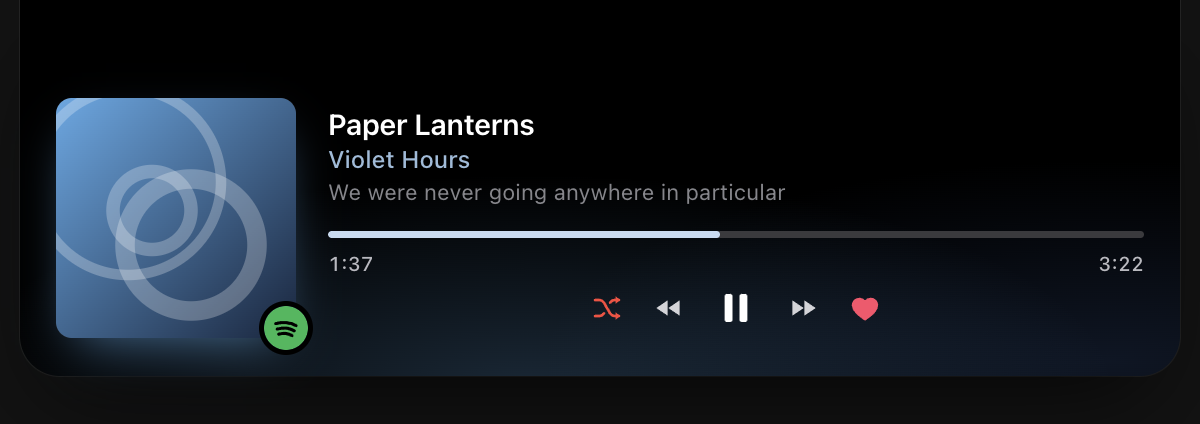
Move your cursor to the notch and a panel drops down with the album art, track and artist, the current lyric line, a scrubber you can click to seek, and transport controls. Click anywhere on it that isn't a button to bring the main window forward. Move away and it folds back up into the notch.
Idle, it shows only the album thumbnail and a few level bars, positioned either side of the camera so the notch itself hides the rest:

With the HUD on, the app runs from the menu bar only: no Dock icon, and no Cmd+Tab entry.
macOS will only let a window float above another app's fullscreen Space if the app is registered as a background accessory, and giving up the Dock icon is how an app declares that. Keep the Dock icon and the HUD simply stops existing the moment you switch to a fullscreen window — which is most of when you'd want it.
Use the menu bar icon to reopen the main window. Turning the HUD off under Settings → Notch HUD restores the Dock icon and Cmd+Tab immediately.
No notch on your Mac? The panel still works — it sits at the top centre of the display and sizes itself to your menu bar instead.
Staying updated
The app updates itself, and asks first every time.
It checks on launch and then hourly. When there's a new version you get three choices, and nothing downloads until you pick one:
| Choice | What happens |
|---|---|
| Install now | Downloads, verifies, swaps the app and relaunches it. |
| Install on quit | Downloads now, applies next time you close the app. Nothing more for you to do. |
| Skip this version | Stays skipped across relaunches. You'll be asked again at the next release. |
If an update fails
Because the app is unsigned, the swap can occasionally be refused by macOS. The app tells you when this happens and links to the release page. A failed update is always rolled back — you'll never be left without a working app.
To update by hand, download the new DMG and repeat the install steps. Your settings, EQ curves and Spotify sign-in are kept: they live in ~/Library/Application Support/Electron, separate from the app itself.
Uninstalling
Drag the app to the Trash. To remove your settings too:
rm -rf ~/Library/Application\ Support/ElectronBlackHole is a separate install — remove it with brew uninstall blackhole-2ch, or its own uninstaller. Remember to set System Settings → Sound → Output back to your speakers.
Troubleshooting
Nearly every report is one of the first three.
I turned Live on but there's no sound
Work down this list in order.
- Is anything playing? Toggle Live off. If you hear your music normally, audio is reaching macOS.
- Check the macOS output device. If the app's source is BlackHole, macOS output must be BlackHole 2ch. Your speakers going silent is correct.
- Check the app's Output device. It must be a real speaker or headphone — never BlackHole. Avoid "System default" here: if macOS is set to BlackHole, so is that.
- Is Live actually on? The orange dot, top right, needs to be lit. Otherwise the app is only visualising.
- Connected AirPods after launching? The picker doesn't re-route automatically. Choose them manually.
- Worked, then stopped? Disconnect and reconnect in the source picker. If that fails, relaunch.
A loud whine or echo when Live is on
Classic feedback loop: the output and the input are the same device. If your source is BlackHole, set Output device to real speakers or headphones.
It's quieter than playing normally
The chain is unity-gain by default, so 100% volume should match direct playback exactly. To go louder:
- Volume (Enhancer panel) runs to 250%, and is a literal multiplier — 200% really is twice as loud.
- Preamp adds ±12 dB before the EQ.
- Bass / Mid / Treble add ±12 dB each at their shelves.
Modern pop and hip-hop is already mastered near 0 dBFS and will clip past roughly 150%. That's the digital ceiling, not a fault. Quiet classical, podcasts and older recordings take 200%+ happily.
"Electron is damaged and can't be opened"
Expected on first launch, and misleading — the app is unsigned, not damaged. Run xattr -cr on it while it's still in Downloads, then move it to Applications. Full commands are in Install.
Right-click → Open no longer works on macOS 15 and later. Use the command.
"Operation not permitted" when running xattr
The app is already in /Applications, which recent macOS protects from Terminal. Move it to the Desktop, run xattr -cr there, move it back — the cleared flag travels with the file. Commands are in Install.
My Dock icon disappeared
The Notch HUD is on. macOS requires background-accessory status for a window to float over fullscreen apps, and that means no Dock icon and no Cmd+Tab entry.
Reopen the window from the menu bar icon. To get the Dock icon back, turn off Settings → Notch HUD. More detail →
Spotify won't connect
- The Redirect URI must be exactly
http://127.0.0.1:8888/callback— notlocalhost. - Port 8888 must be free. Quit anything else using it.
- If the browser opens but never comes back, the Redirect URI is wrong. Compare it character by character.
The audio device list is empty
macOS hides device names from apps without microphone permission, even when you only intend to use BlackHole. Allow it when prompted, or under System Settings → Privacy & Security → Microphone.
The "System Audio" button does nothing
macOS is waiting on Screen Recording permission without saying so. Enable Electron under System Settings → Privacy & Security → Screen Recording, then try again.
The window opened but I can't see it
It launched in the background. Use the menu bar icon, or Cmd+Tab. With the Notch HUD on there's no Dock icon or Cmd+Tab entry, so the menu bar icon is the way in.
Still stuck?
Open an issue on GitHub with your macOS version, your Mac's chip, and what you expected to happen.
Shortcuts
| Action | Result |
|---|---|
Space | Play / pause |
← / → | Previous / next track |
Esc | Clear the EQ band selection |
Cmd+Shift+P | Toggle the performance overlay |
| Click a band's frequency label | Add it to a multi-band selection |
| Drag across band labels | Range-select bands |
| Drag a selected band | Move every selected band by the same amount |
| Drag the response curve | Pan the frequency / dB window |
| Double-click the curve | Reset the pan |
| Shift + drag a knob | Fine adjustment |
| Double-click a knob | Reset to default |
| Right-click a track | Add to playlist, queue, or copy link |
Build from source
An app you compile yourself isn't quarantined, so no xattr step.
git clone https://github.com/omkarxpatel/Electron.git
cd Electron
npm install
npm run dev            # run it
npm run build          # or build a DMG into release/
Built on Electron 33, React 19, TypeScript and Vite, with the Web Audio API doing the signal work. macOS only — the capture chain uses ScreenCaptureKit and Core Audio, which have no portable equivalent.
MIT licensed. Issues and pull requests welcome on GitHub.